How to add divider in react js?
May 23, 2024Hi Friends 👋,
Welcome To aHoisting!
To add divider in react js, you can use <hr>. It will add divider in react js.
Today, I am going to show you, how to add divider in react js.
Table of contents
- Install and create a new React app.
- Import react component.
- Create a Component.
Let’s start with the first step.
Step 1: Install and create a new React app.
First you have to install the React project. You should use create-react-app command to create a new React project.
npx create-react-app my-app
cd my-app
npm start
Step 2: Import react component.
After installing, you have to import your React component. To do this, add the following line to the top of your component file.
import React from 'react';
import './App.css';
Step 3: Create a Component.
You can use <hr> to add divider in react js.
<div className="App">
  <header className="App-header">
    <h1>Section 1</h1>
        <p>This is the first section.</p>
        <hr className="divider" />
        <h1>Section 2</h1>
        <p>This is the second section.</p>
  </header>
</div>
Define the add divider example.
The below code is an example of a React. You have to import './App.css' and use <hr> to add divider in react js.
App.js
import React from 'react';
import './App.css';

function App() {
  return (
    <div>
      <header>
        <h1>Section 1</h1>
        <p>This is the first section.</p>
        <hr className="divider" />
        <h1>Section 2</h1>
        <p>This is the second section.</p>
      </header>
    </div>
  );
}

export default App;
App.css
.divider {
  border: 0;
  height: 1px;
  background: #ccc;
  margin: 20px 0;
}
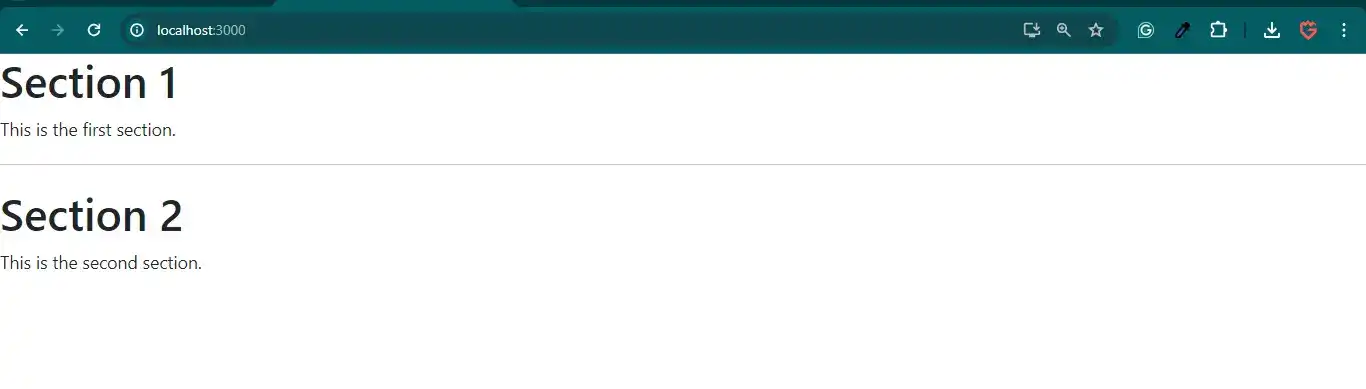
In the above code example, I have used the <hr> tag and add divider in react js.
Check the output of the above code example.
All the best 👍